Activity Heatmap
Helps visualize developer activities to detect workload imbalances and unhealthy work practices.
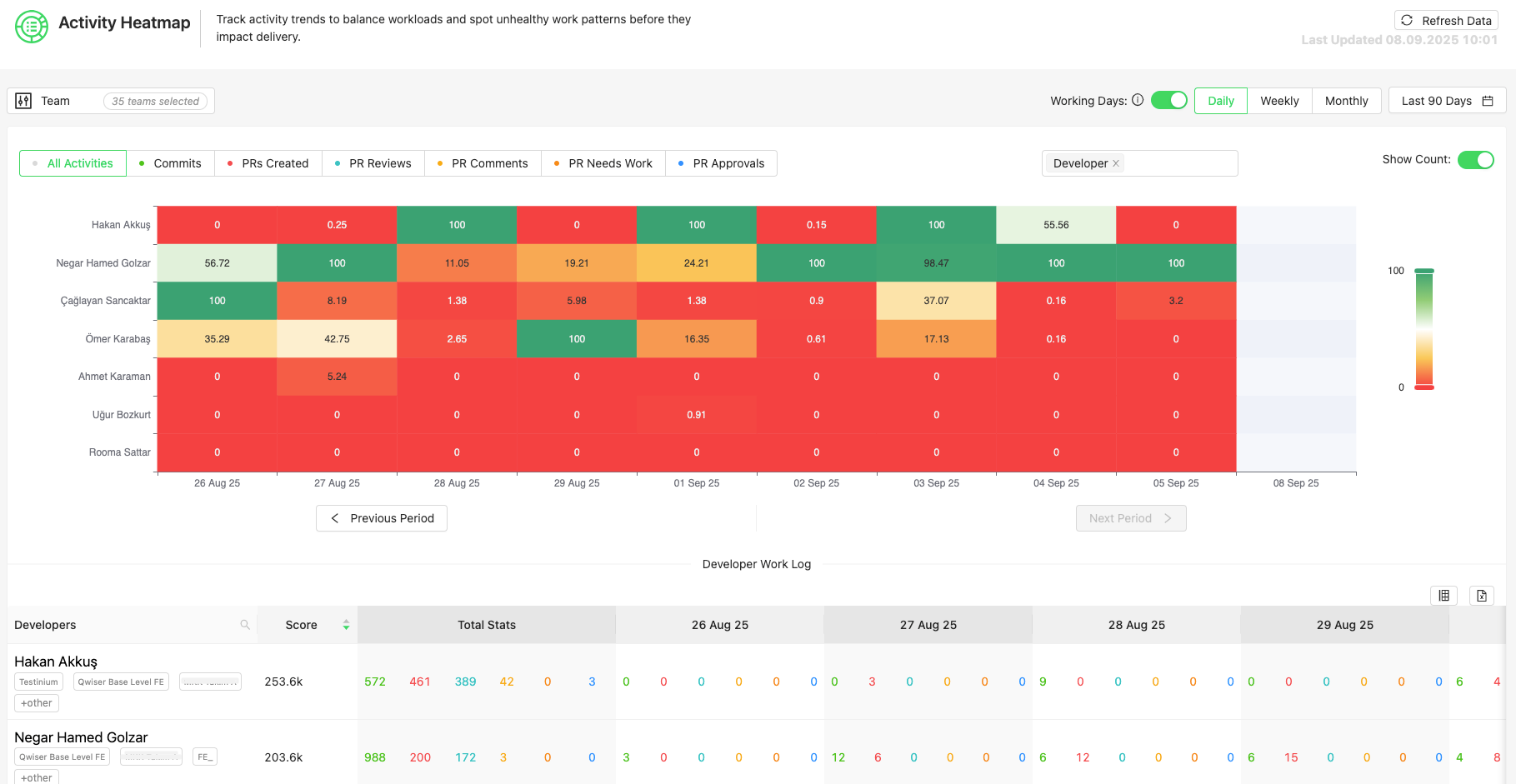
The Oobeya Activity Heatmap module visualizes the daily activities of software development teams, helping analyze workload distribution, contribution diversity, and developer experience. It scores various activities such as commits, pull requests (code reviews), code changes, and comments, and presents trends over time in a heatmap format.
With this module, you can:
Identify overloaded or under-contributing developers.
Detect unbalanced workload distributions.
Encourage fairer task sharing within teams.
1. Key Features
Analysis by daily, weekly, monthly, quarterly, or custom time range
Tracking of PR, commit, code line changes, and code review comments
Color-coded heatmap view by developer
Developer Work Log with detailed contribution analysis
Team selection and role-based filtering
Working days filter (configured under Admin Panel > General Settings)

2. Scoring Mechanism
In the Activity Heatmap module, developer activities are calculated using data from different contribution types and normalized for visualization in the heatmap.
2.1. Daily Normalization & Z-Score
The highest-scoring developer each day is taken as the 100% reference.
Other developers are scaled against this maximum →
rank_ratio.Daily contributions are normalized.
The average ratio and standard deviation of all developers are calculated.
Ratios are converted to z-scores and normalized into the 0–100 range.
These scores are mapped into color tones in the heatmap.
2.2. Activity-Based Score Formulas
2.2.1. Commit Activities
COMMIT_SCORE = (COMMITS × commit_coeff) +
(LINES_ADDED × added_coeff) +
(LINES_DELETED × deleted_coeff) +
(LINES_EDITED × edited_coeff)2.2.2. Pull Request Activities
PR_OPEN_SCORE = PRs Created × pr_open_coeff
PR_REVIEW_SCORE = PR Reviews × pr_review_coeff
PR_APPROVAL_SCORE = PR Approvals × pr_approve_coeff
PR_NEEDS_WORK_SCORE = PR Needs Work × pr_needs_work_coeff
PR_COMMENT_SCORE = PR Comments × pr_comment_coeff2.2.3. Total Score
TOTAL_RANK_SCORE = COMMIT_SCORE + PR_OPEN_SCORE + PR_REVIEW_SCORE +
PR_APPROVAL_SCORE + PR_NEEDS_WORK_SCORE + PR_COMMENT_SCORE2.2.4. Heatmap Visualization
Normalized scores are mapped into color tones.
Darker tones represent higher activity, lighter tones represent lower activity.
3. Admin Panel Settings
Weight values are assigned to different activities. These coefficients determine how each activity type influences the overall heatmap score and visualization.
Location: Administration > Activity Heatmap
Coefficient Settings
For each activity type, you can define its weight on the total score.
Commits
Number of commits made
2.0
Lines Added
Number of lines of code added
0.1
Lines Deleted
Number of lines of code deleted
0.1
Lines Edited
Number of lines of code modified
0.1
PRs Created
Number of pull requests created
1.0
PR Reviews
Number of code reviews performed
1.5
PR Approvals
Number of pull requests approved
0.25
PR Needs Work
Number of pull requests sent back for changes
0.5
PR Comments
Number of comments made on pull requests
1.0

4. Dashboard Components
The Activity Heatmap Dashboard consists of multiple components to analyze daily developer activities from different perspectives. Each component visualizes contribution types, trends over time, and distribution within teams.
4.1. Activity Heatmap
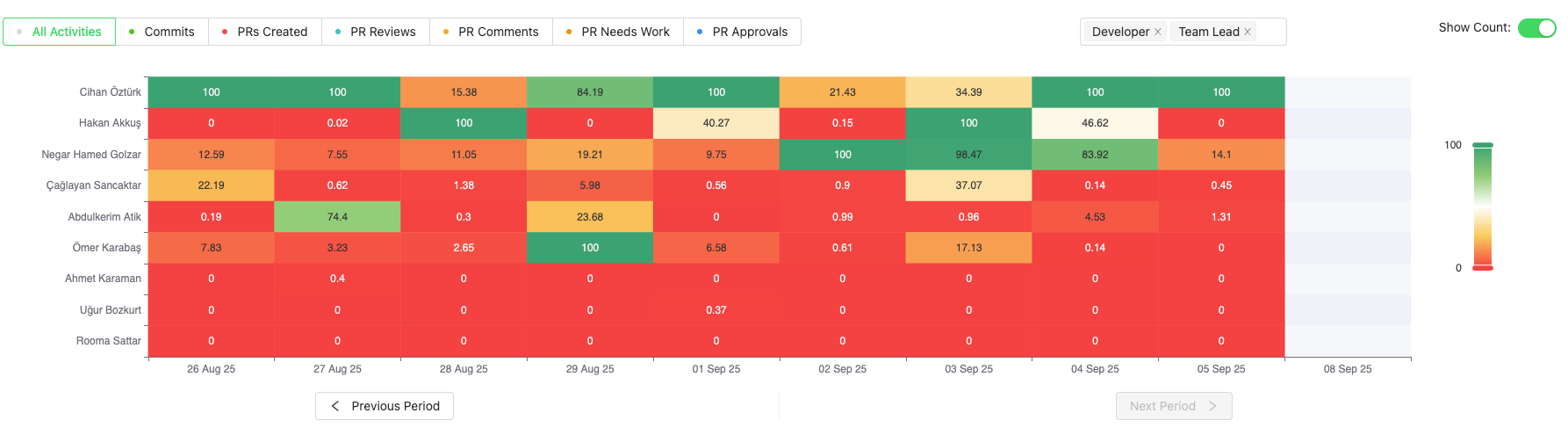
Activity Heatmap is the core component that visualizes developers’ daily activities. Each cell represents a developer’s contribution score for a given day.
Color Intensity: The cell’s color reflects the developer’s performance level that day. Darker tones represent higher activity, lighter tones lower activity.
Normalized Scores: Daily scores are normalized against the highest contribution of the day, ensuring fair comparisons between developers and across days.
Time Filters: Analysis can be done daily, weekly, monthly, or within custom date ranges.

4.2. Developer Work Log
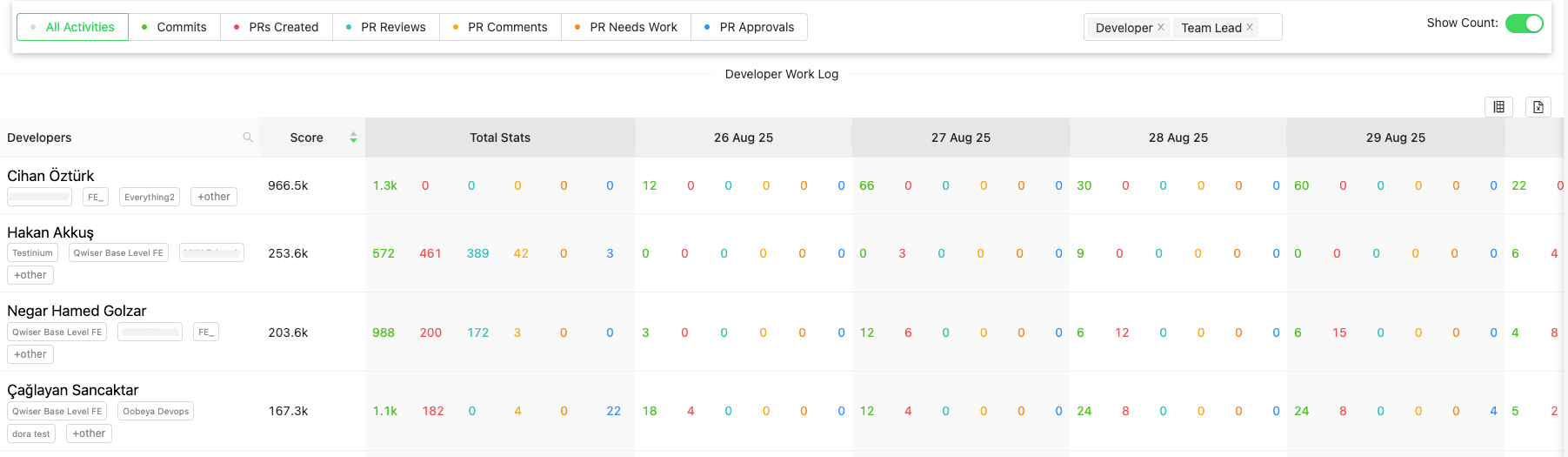
The Developer Work Log provides a detailed list of daily activities for each developer within the selected date range. It provides the raw data behind the scores displayed in the heatmap in a tabular format.
This section shows:
Total score by developer (normalized)
Total activity counts (commits, PRs, comments, etc.)
Daily contribution cells with activity counts and corresponding points

4.3. Filters
The Activity Heatmap module offers various filtering options to enable more focused and meaningful analysis:
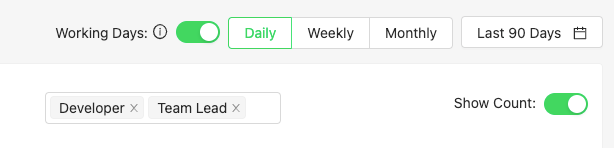
Working Days: Ensures scores are calculated only based on your company’s defined working days (e.g., Monday–Friday). Configurable in Admin > General Settings.
Team Selection: Select one or more teams to view only their activities in the heatmap.
Role Filter: Choose specific roles (e.g., Developer, QA) to include only those roles in the analysis. Non-development contributions can be excluded.
Activity Type: Select desired activity types (commits, PR creation, reviews, comments, etc.) to filter the heatmap by those contributions.

5. Data Sources
The Activity Heatmap module aggregates data from different development tools and contribution types to calculate developer activities.
Commits: Commit records from Git repositories (Azure DevOps, GitHub, GitLab, Bitbucket, Gitea)
Code Changes: Lines added, deleted, and modified
Pull Requests: Created PRs (GitHub, GitLab, Bitbucket, Azure Repos, etc.)
Code Reviews: Reviews performed, PR approvals, or rejections
Comments: Comments made on pull requests
Developer Profiles: Only developers defined in Oobeya are included in the analysis
6. Recommended Use Cases
The Activity Heatmap module can be used in different scenarios to make team activities fairer, more balanced, and more effective:
Sprint Reviews
Analyzes contribution intensity at the end of a sprint, supporting healthier retrospectives.
Workload Balance
Identifies overloaded or low-participation team members to rebalance task assignments.
Engagement & Motivation
Helps spot developers with consistently low contributions and supports motivation-boosting actions.
PR Review Culture
Measures the review culture of teams through PR reviews, comments, and approvals.
Performance Improvement
Tracks collaboration and contribution diversity to uncover training and coaching needs.
7. FAQ (Frequently Asked Questions)
Last updated
Was this helpful?